
Org360 help: how to run a survey, step by step
How to create and send a survey, read the report, use Org360 from your AI, and manage your team, credits and account.
Most screenshots were taken in September 2026. The app looks a little different now, and we're replacing them. Where a screenshot and the text disagree, the text is current.
Start here
Org360 runs 360 feedback and engagement surveys, then turns the answers into a report: scores, the person's self-rating next to everyone else's, strengths, areas to develop and a 6-month plan. You can do it all on the website, or by asking Claude, ChatGPT or Gemini once Org360 is connected.
Everything is organized around 3 things: surveys you send, reports those surveys produce, and survey credits. One credit sends one survey, to up to 500 people.
Signing in
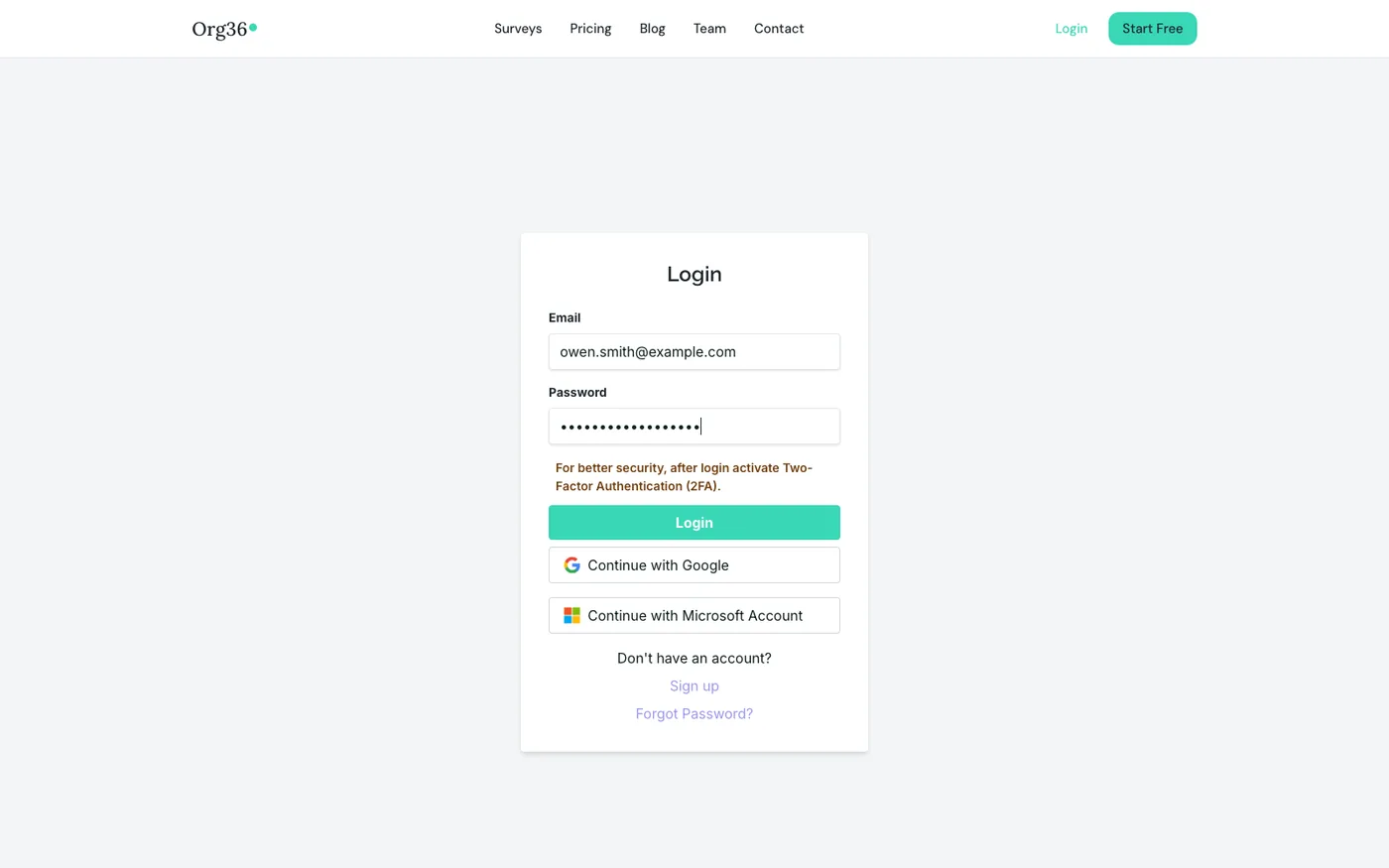
Sign in at app.org360.app with your email and password, or with Google or Microsoft. Two-factor authentication is off by default; a reminder shows until you turn it on (see Account settings).
Every new account gets 1 free survey and a finished sample 360 for a fictional leader, Elena Vasquez, so you can explore a report before you involve a client.
The dashboard
Your home after signing in. 3 tabs cover everything: Surveys, Insights and Credits.
Surveys
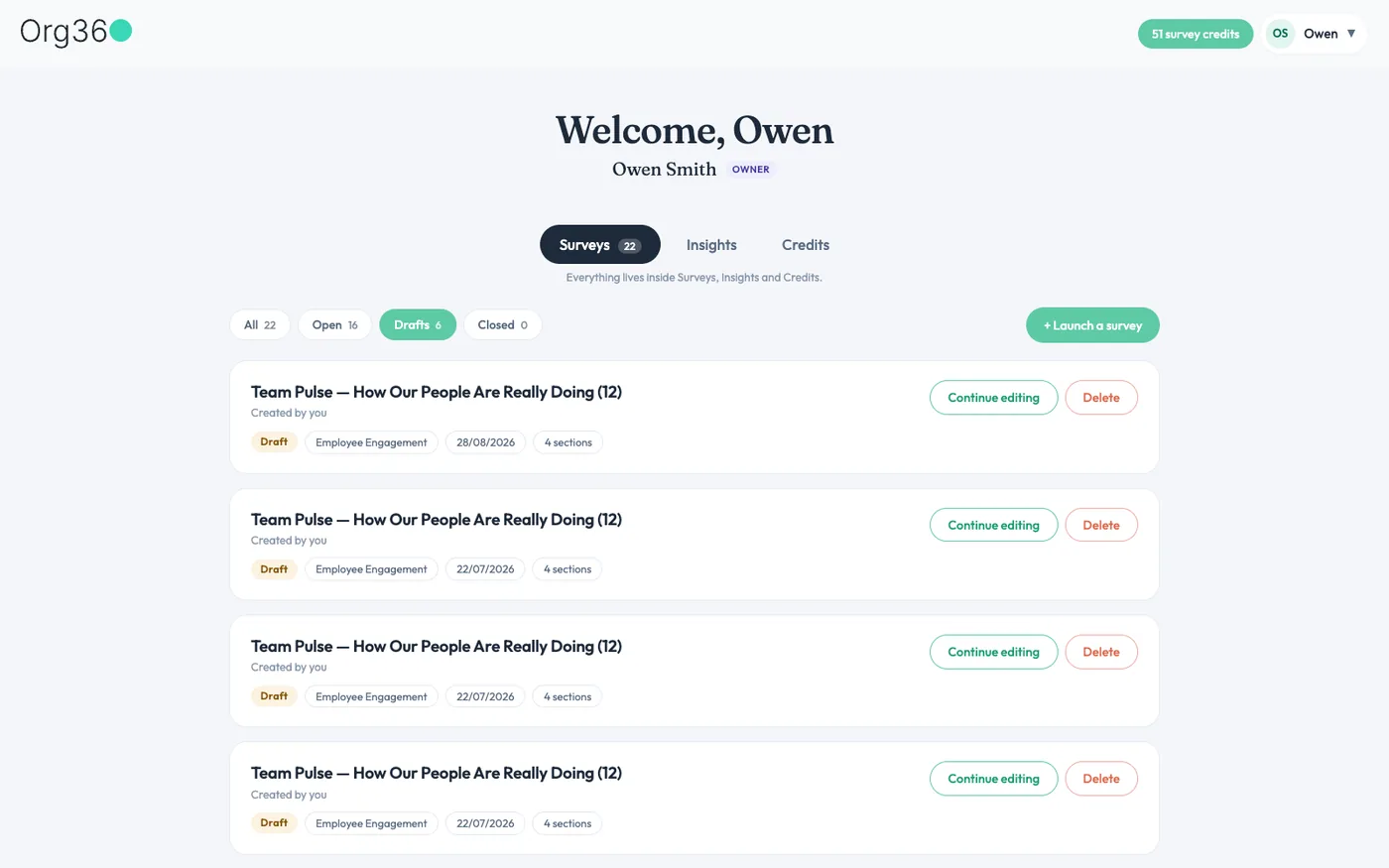
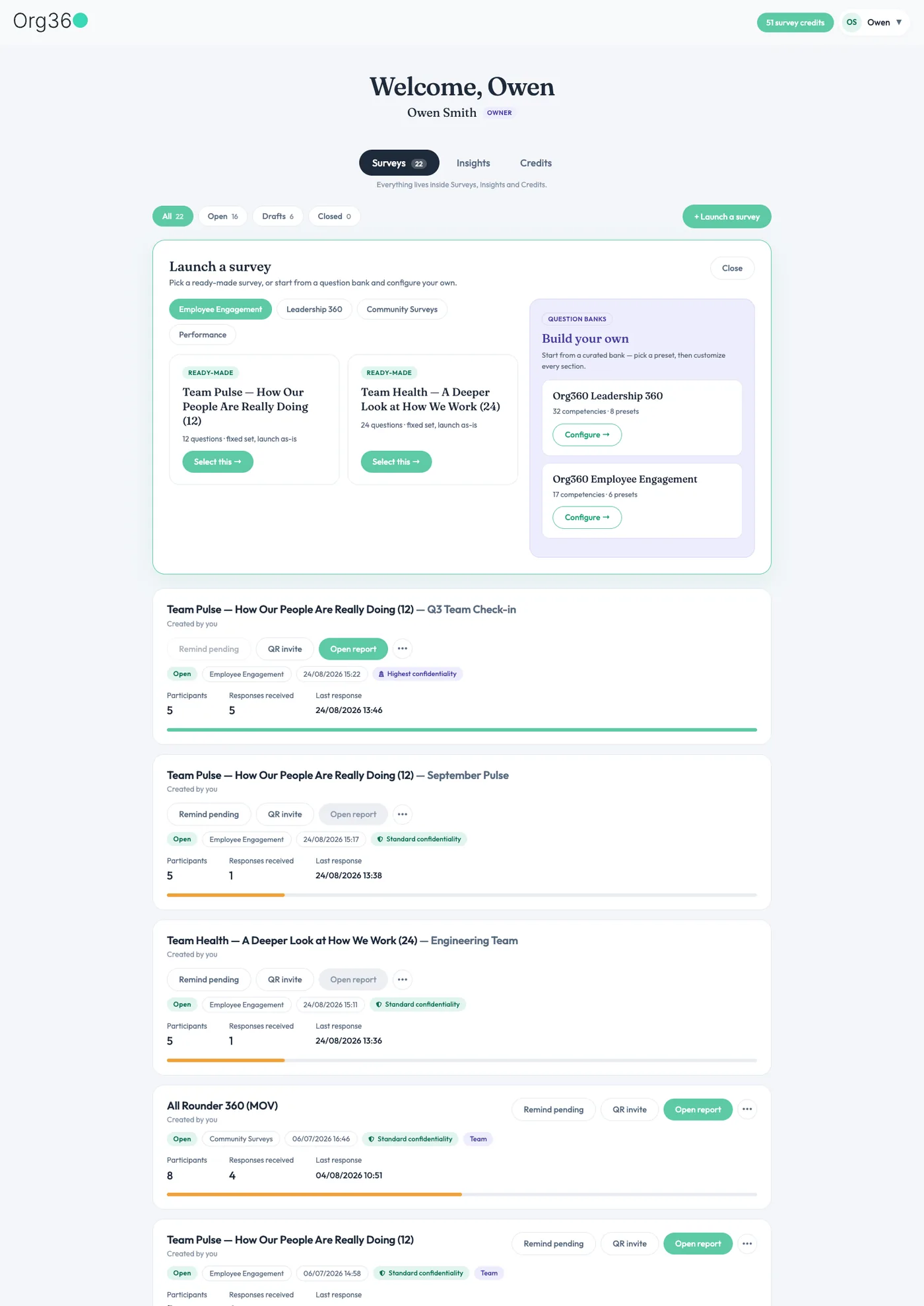
Every survey you've created, filtered by All, Open, Drafts or Closed. Each card shows the status, type, confidentiality mode, number of participants, responses so far and the time of the last response.
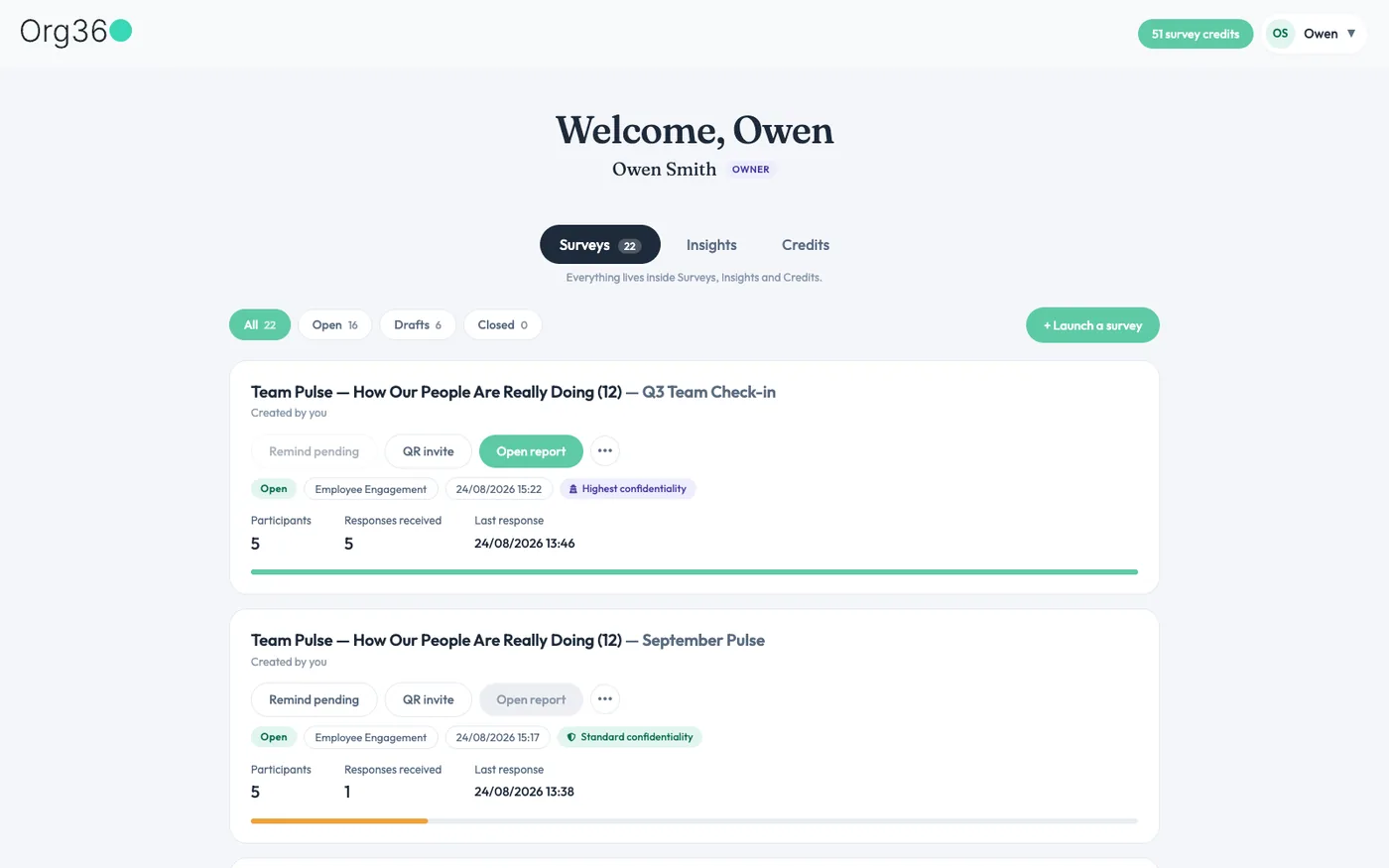
Open surveys have 3 quick actions: Remind pending, QR invite and Open report, plus a ⋯ menu. Drafts have Continue editing and Delete, since nothing has been sent yet.
Insights
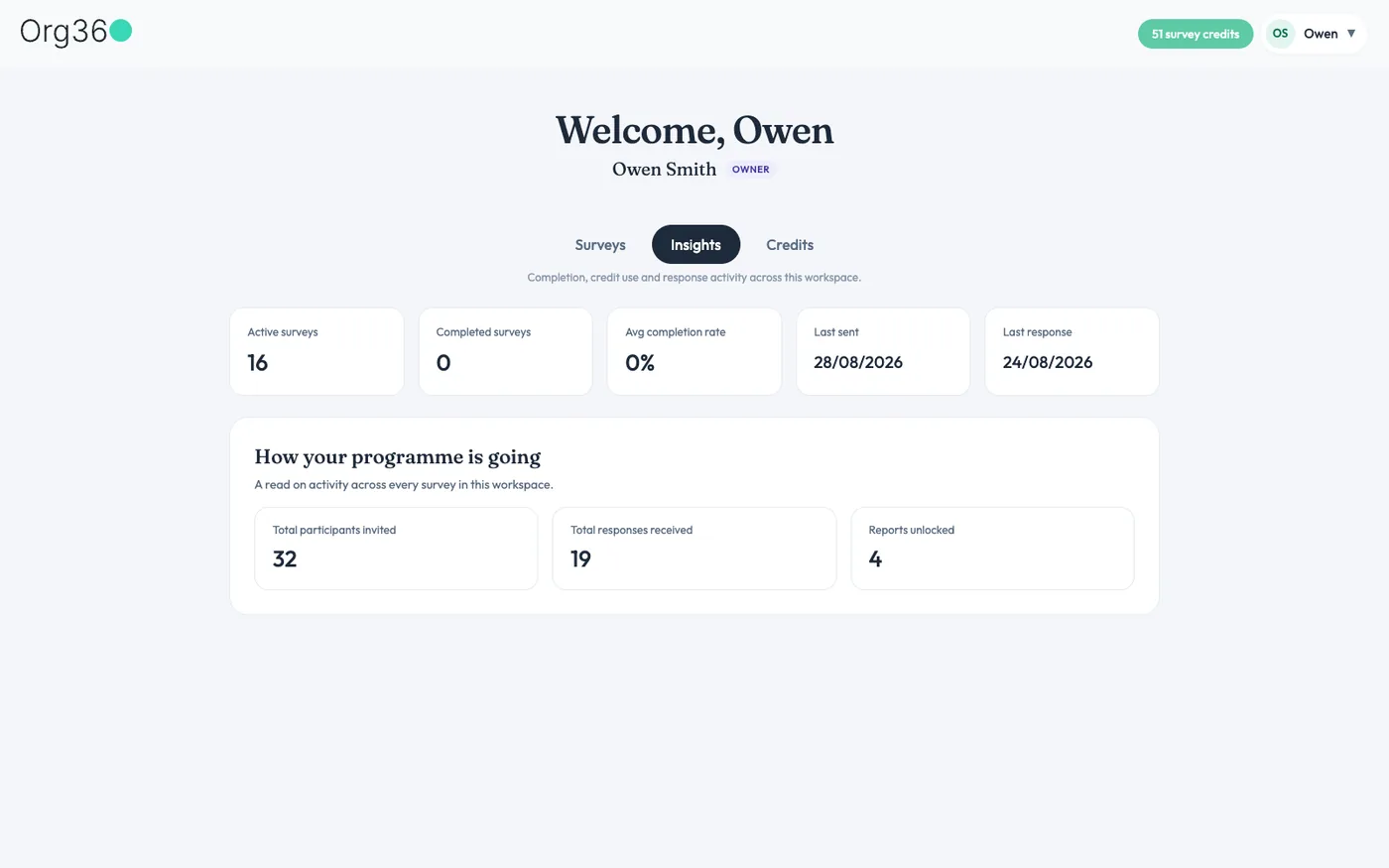
Totals across your account: active and completed surveys, average completion rate, when you last sent a survey and when it was last answered, and how many people you've invited, how many replied and how many reports have opened.
Credits
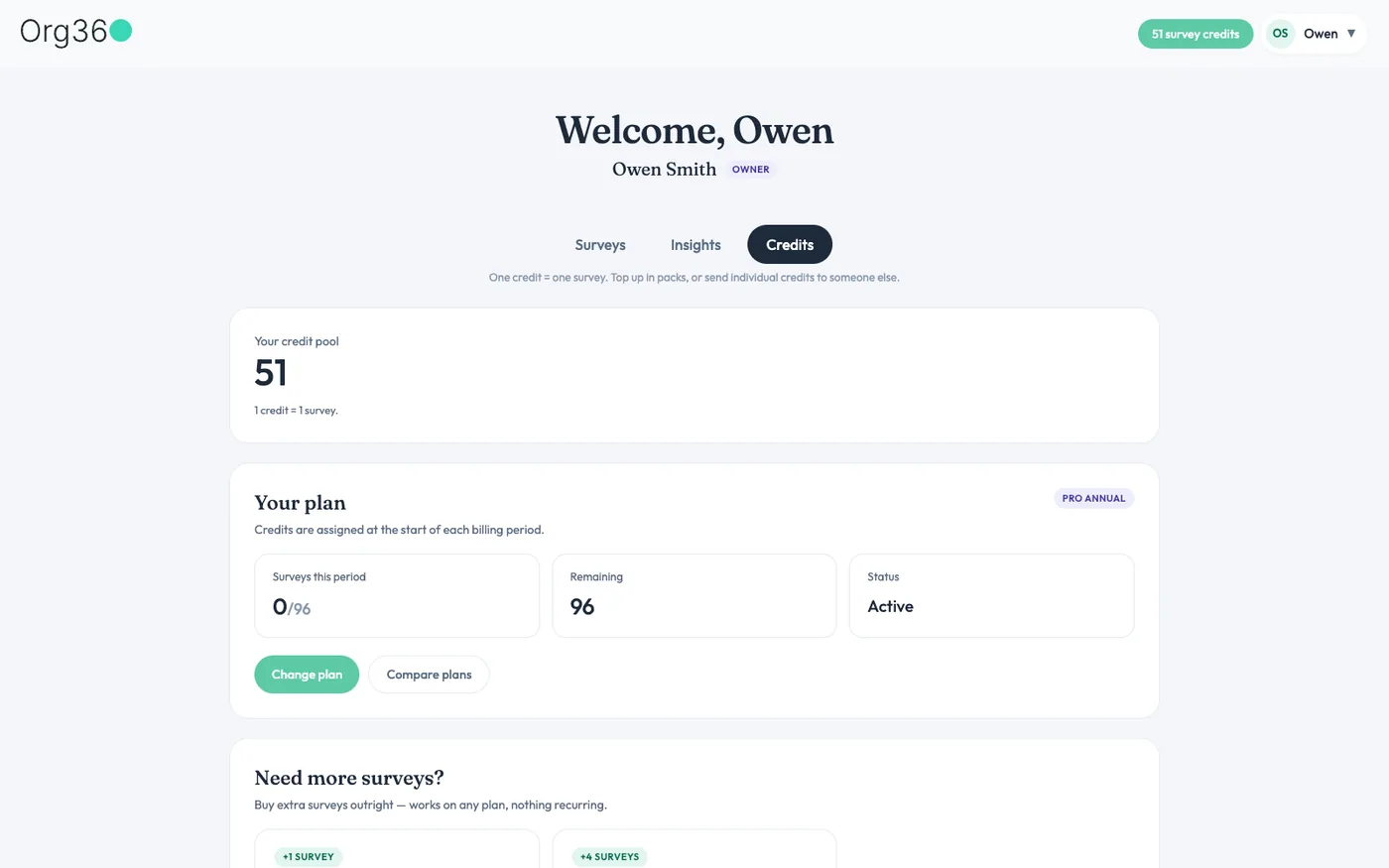
Your survey credits, your plan, and shortcuts to buy more. Activity history at the bottom lists every purchase, transfer and survey sent, with invoice links.
Creating a survey
Click + Launch a survey on the dashboard. You have 2 ways in: a ready-made survey, or your own from a question bank. A third way, describing any survey and having it drafted for you, works from your AI.
Ready-made surveys
The launch panel groups ready-made surveys by type: Employee Engagement, Leadership 360, Nonprofit and Performance. A Custom tab lists any surveys set up specially for your account. Click Select this to start a draft. Every ready-made survey is described in full, question by question, in the survey library.
Building from a question bank
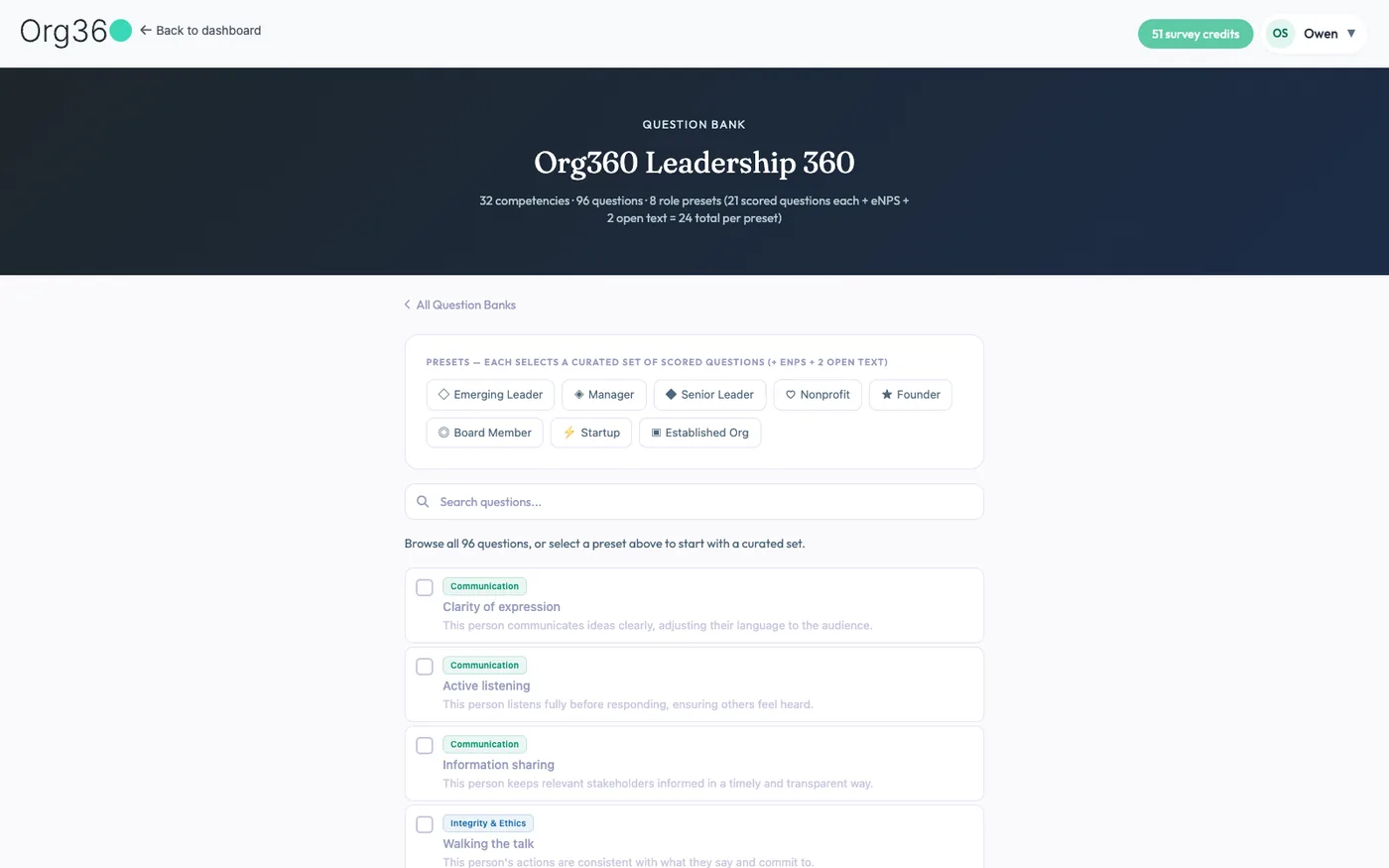
There are 2 banks. The Leadership 360 bank has 96 questions across 32 competencies, with 8 presets: Emerging Leader, Manager, Senior Leader, Nonprofit, Founder, Board Member, Startup and Established Org. The Employee Engagement bank has 17 themes and 6 presets. You can browse both on the website: 360 feedback questions and engagement survey questions.
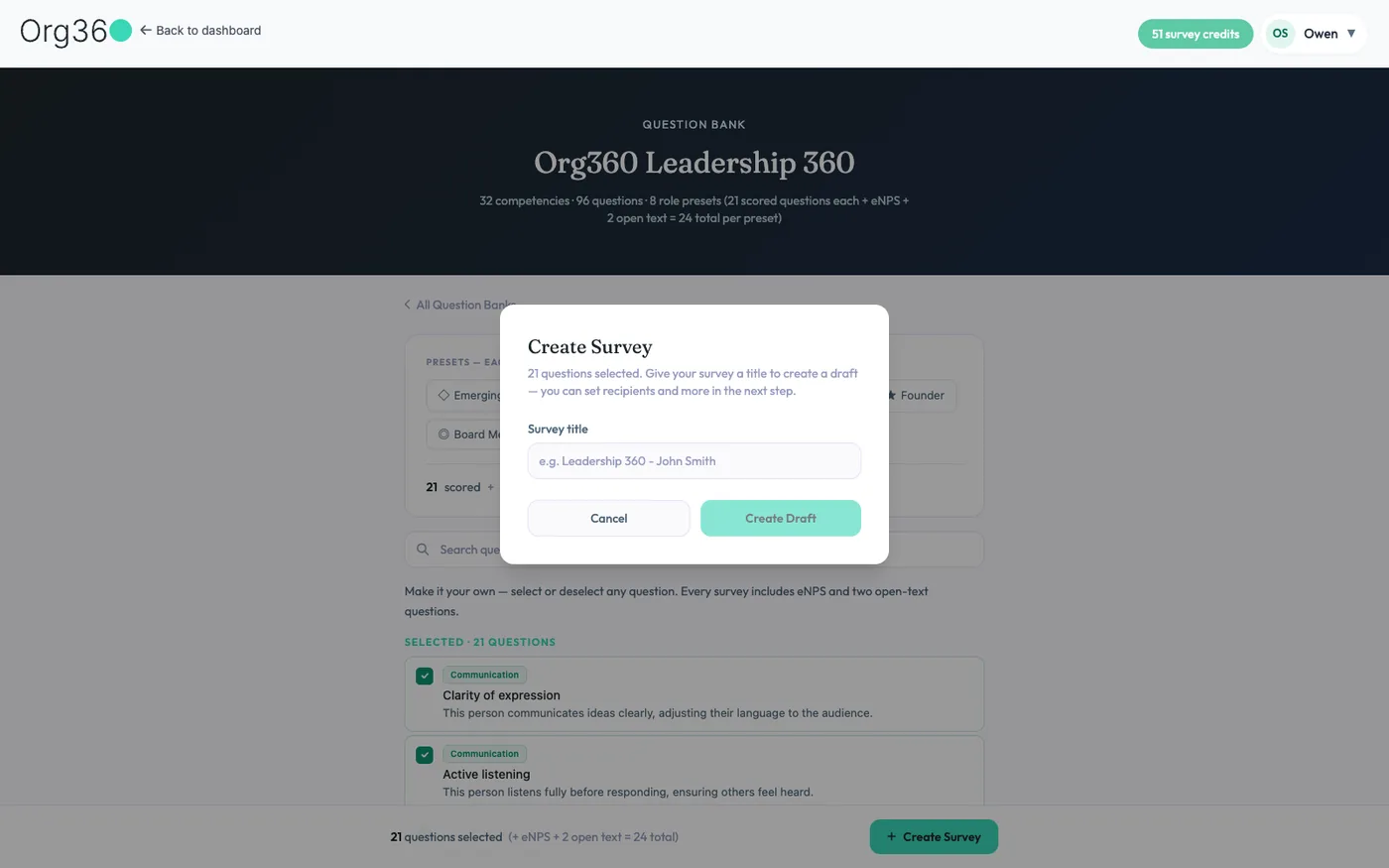
Click Configure, then pick a preset to select a suggested set, or choose questions one by one. Surveys built from a bank get 1 eNPS question and 2 open questions added, so a preset gives you 21 scored questions, 24 in total.
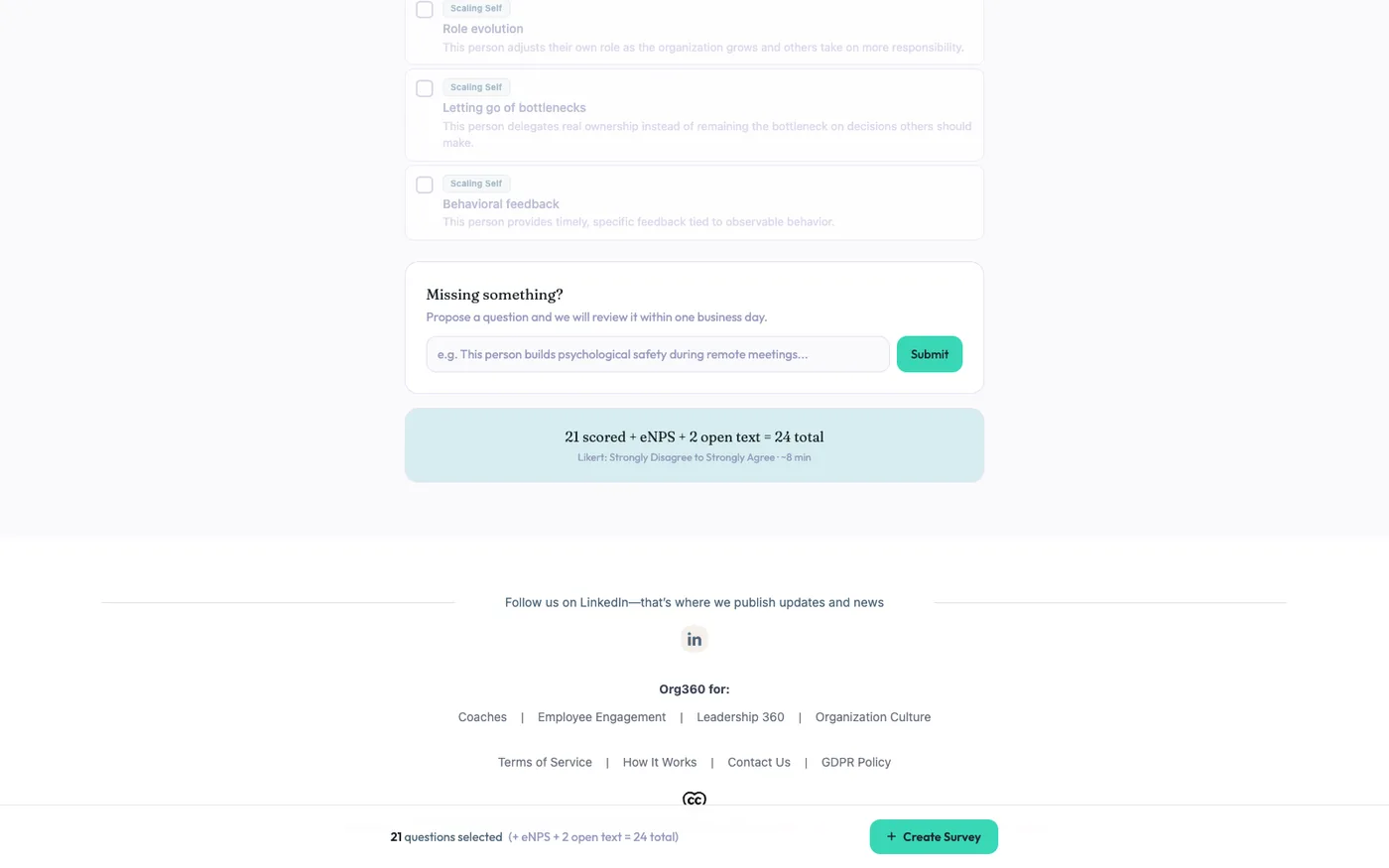
Can't find a question you need? Use Missing something? to propose one. We review proposals within 1 business day.
Naming the draft
Create Survey asks for a title, then saves your questions as a draft. Nothing is sent yet.
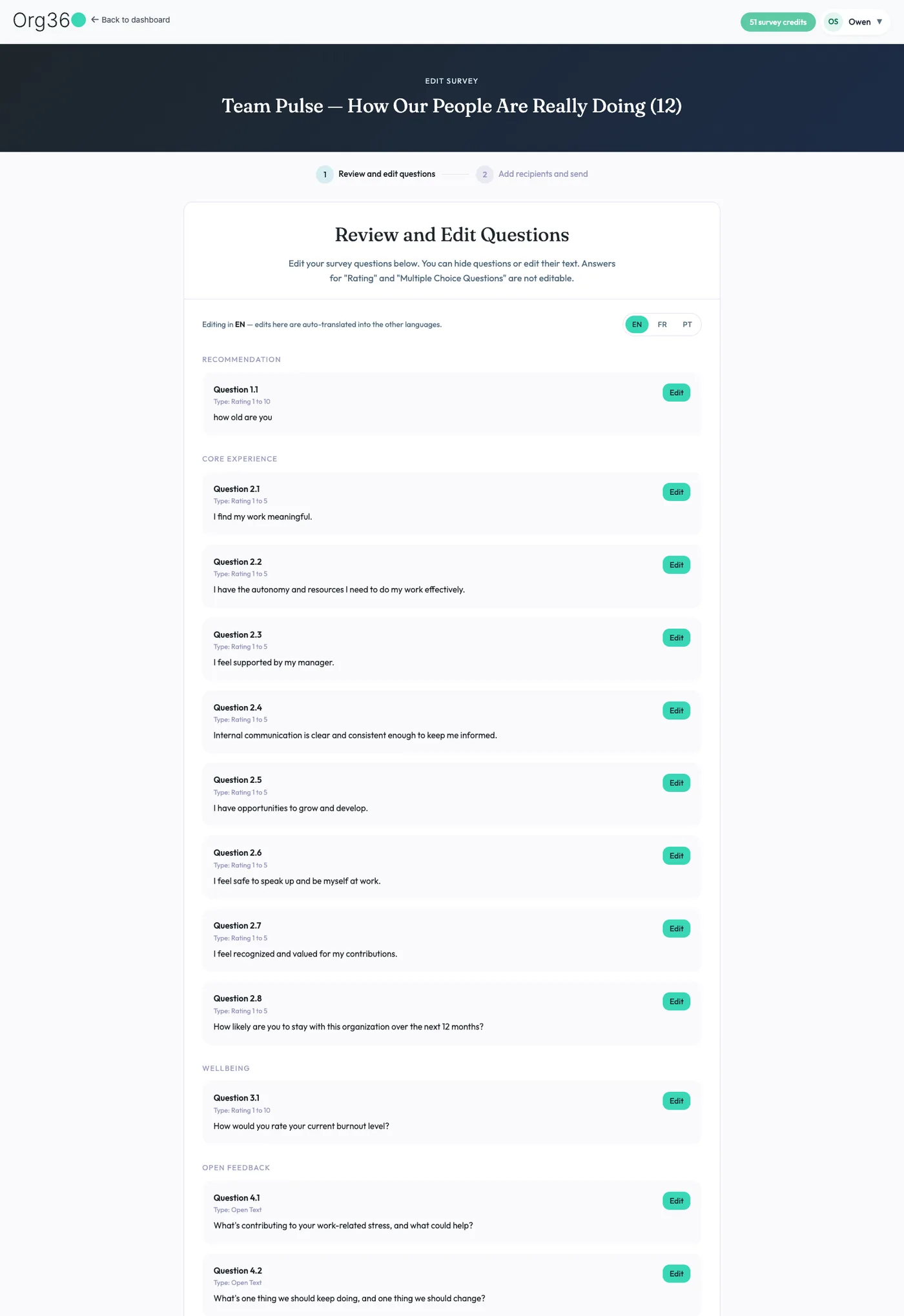
Step 1: review and edit questions
Every draft opens in 2 steps: Review and edit questions, then Add recipients and send. In step 1 you can reword any question or hide the ones you don't need. Answer scales for rating and multiple-choice questions stay fixed. Surveys can run in 8 languages; edits you make in English are translated into the survey's other languages.
Sending the survey
Step 2, Add recipients and send, is where the survey goes out. Check it as carefully as you would an email to a whole team.
Who it's for, and who answers
- Who is the survey for? An optional label, such as the client's name, added to the survey title and the emails. "Leadership 360" becomes "Sam Lee Leadership 360".
- Recipients. Paste up to 500 email addresses, separated by commas, semicolons or spaces. Use each person's own address: every survey link is personal, so a team address would send one link to several people.
- A message (optional) to include in the invitation email, and a due date.
- Optional questions. Switch this on to let people skip rating questions.
Choosing a confidentiality mode
Pick 1 of 3 modes before you can send. It decides what you see in the report and how many replies it needs to open. Respondents are told which mode applies, and you can't change it once the survey has gone out.
| Mode | Report opens after | What you see | Reminders |
|---|---|---|---|
| No confidentiality | 1 reply | Each person's name next to their answers. Names are left out of shared report links. | To individuals |
| Standard | 3 replies | Scores, and comments without names, shuffled for each question. You can see who has replied. | To individuals |
| Highest | 5 replies | Scores and an AI summary of the comments. You can't see the comments themselves or who has replied. | To everyone who hasn't replied, never to one person |
You need at least 1 recipient for No confidentiality and 3 for Standard or Highest. In every mode, respondents can change or withdraw their answers until the survey closes. Our feedback guide explains which mode to choose and how many raters to invite.
Collecting responses
QR code and open link
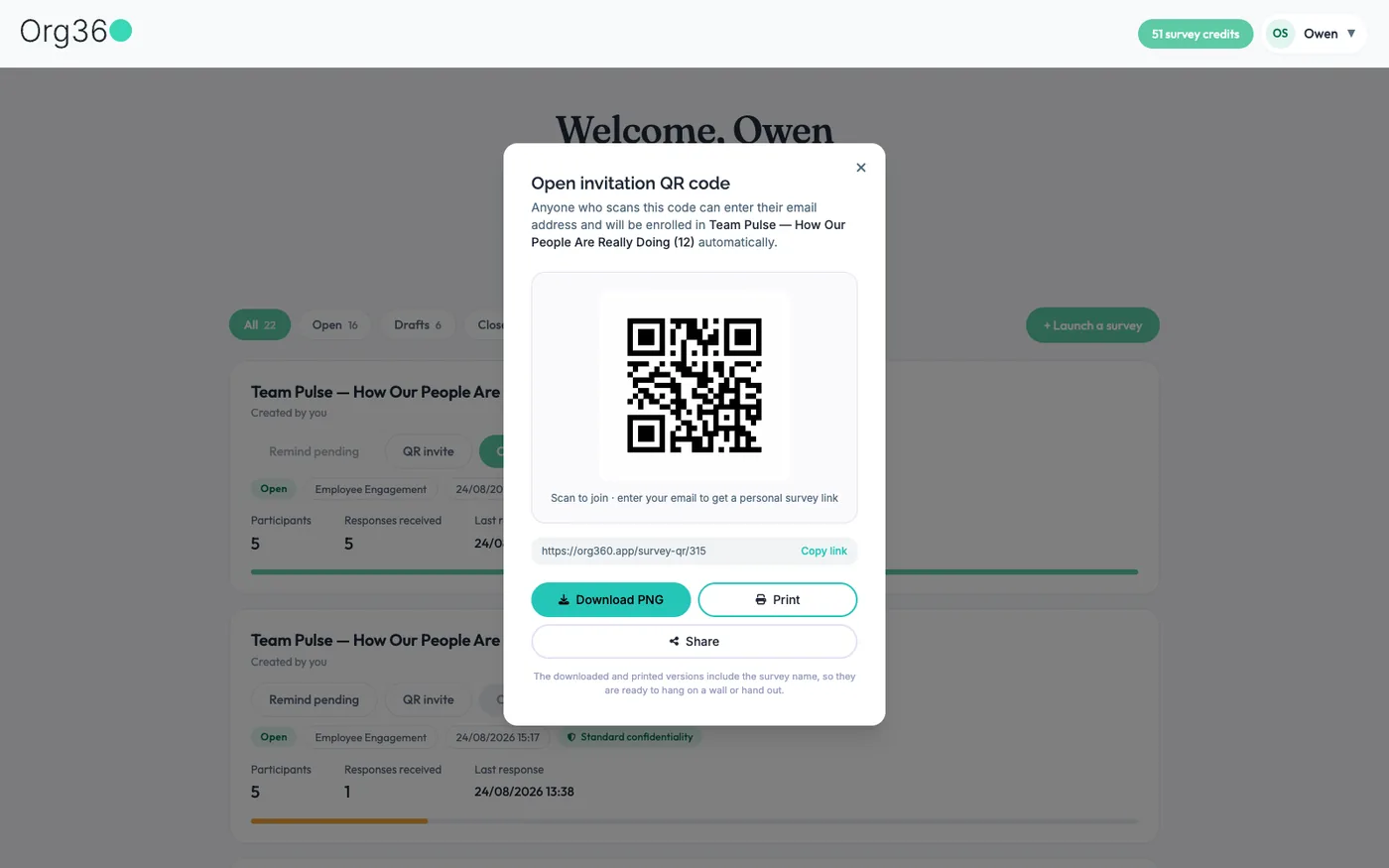
QR invite on an open survey creates a QR code and a matching link. Anyone who scans it enters their email and joins the survey, without being on your list. Download the code as an image, print it with the survey name, or share it. It's useful for a team meeting, a reception desk or a beneficiary survey.
Reminders and progress
Remind pending sends a reminder to everyone who hasn't answered. In Highest mode it always goes to the whole group, so nobody is singled out. The dashboard card shows participants, responses and the last response time as answers come in.
Reading the report
Once enough people have replied, Open report unlocks the report. It's written with Claude, and names of people and organizations are removed before any text reaches the AI. The summary refreshes as more replies come in. The public sample 360 report shows a complete one, and our guide explains how to read a 360 report.
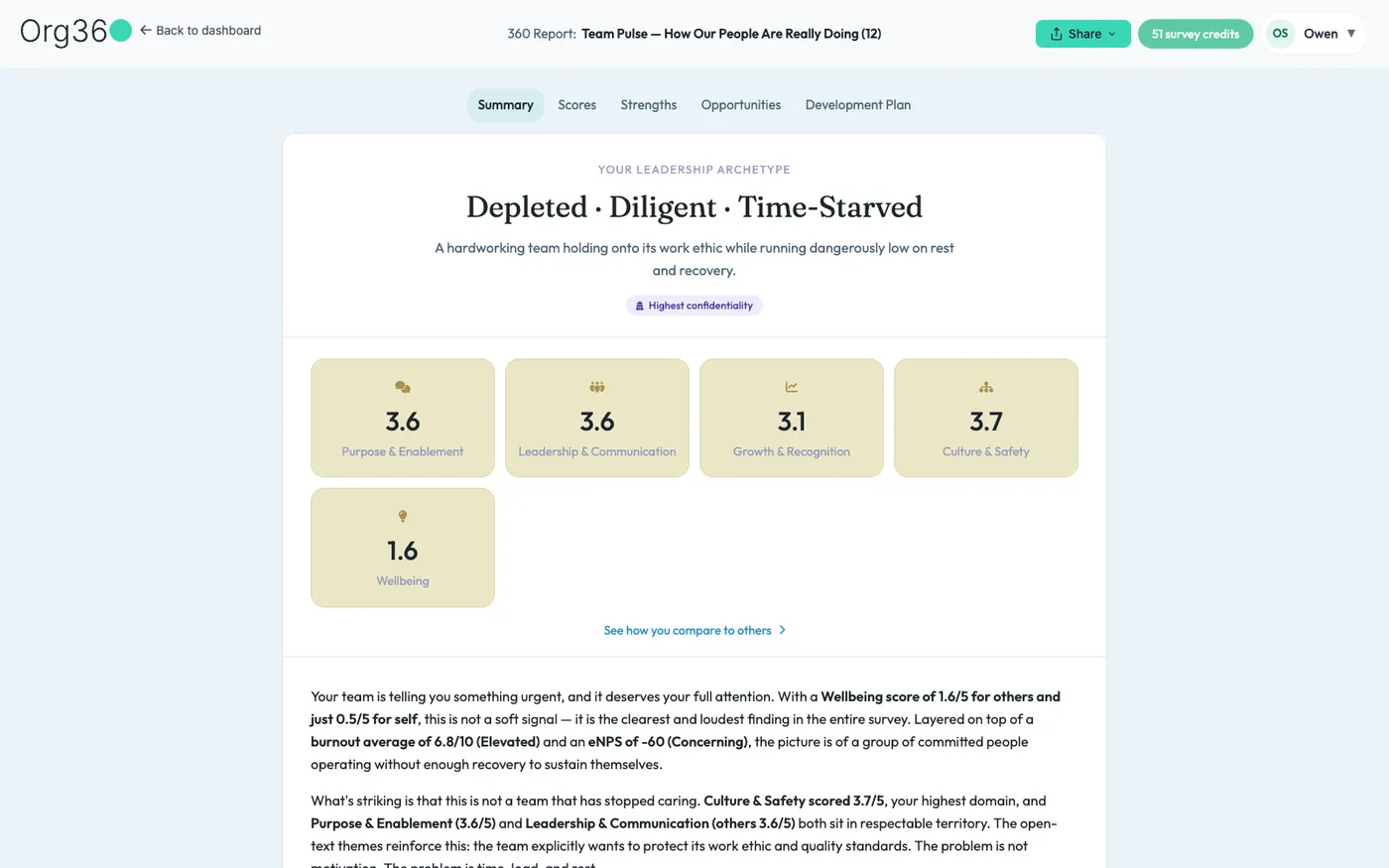
Summary and archetype
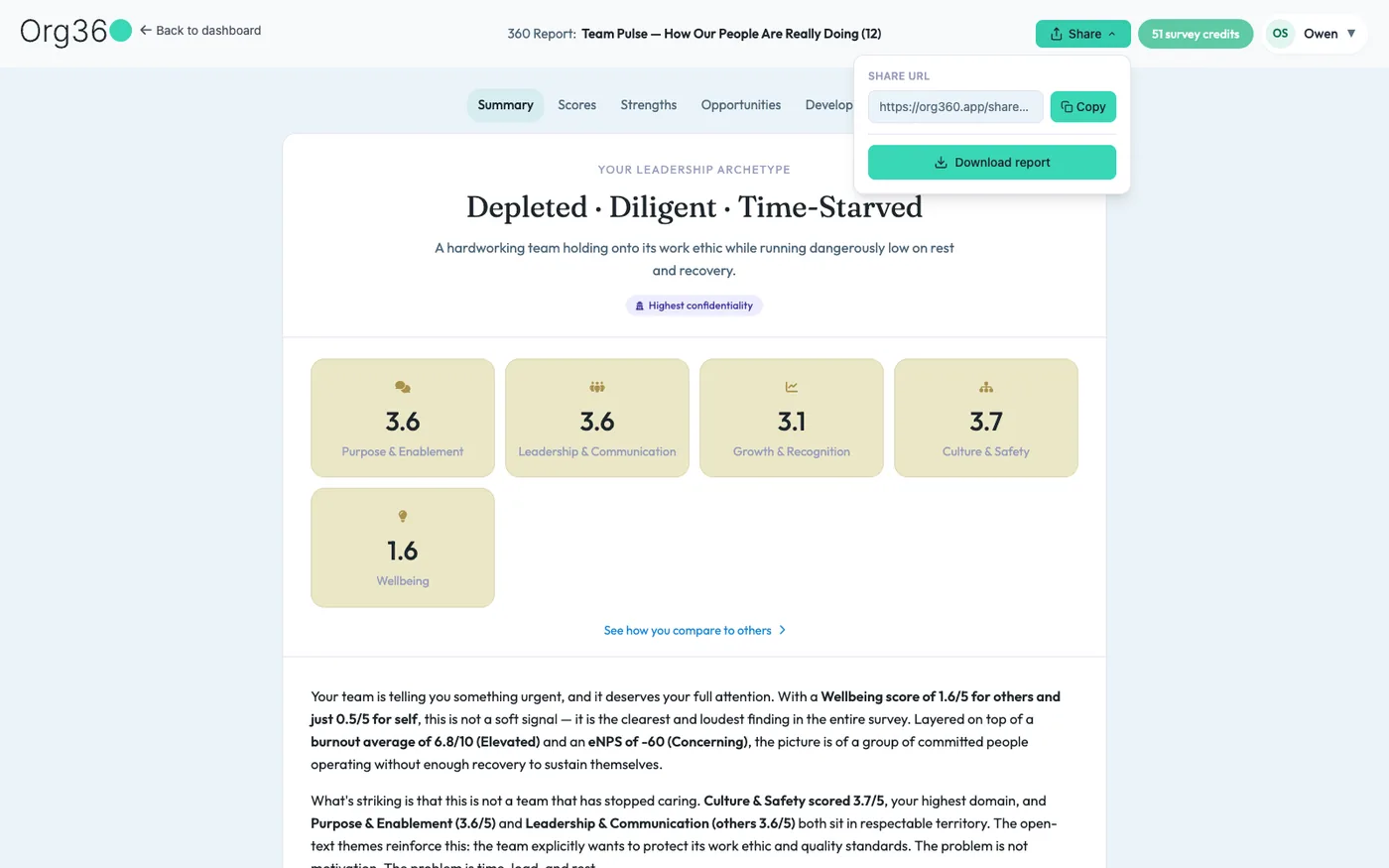
The report opens with a feedback archetype (3 short phrases that sum up the feedback), scores by area, a written summary and the confidentiality mode.
Scores
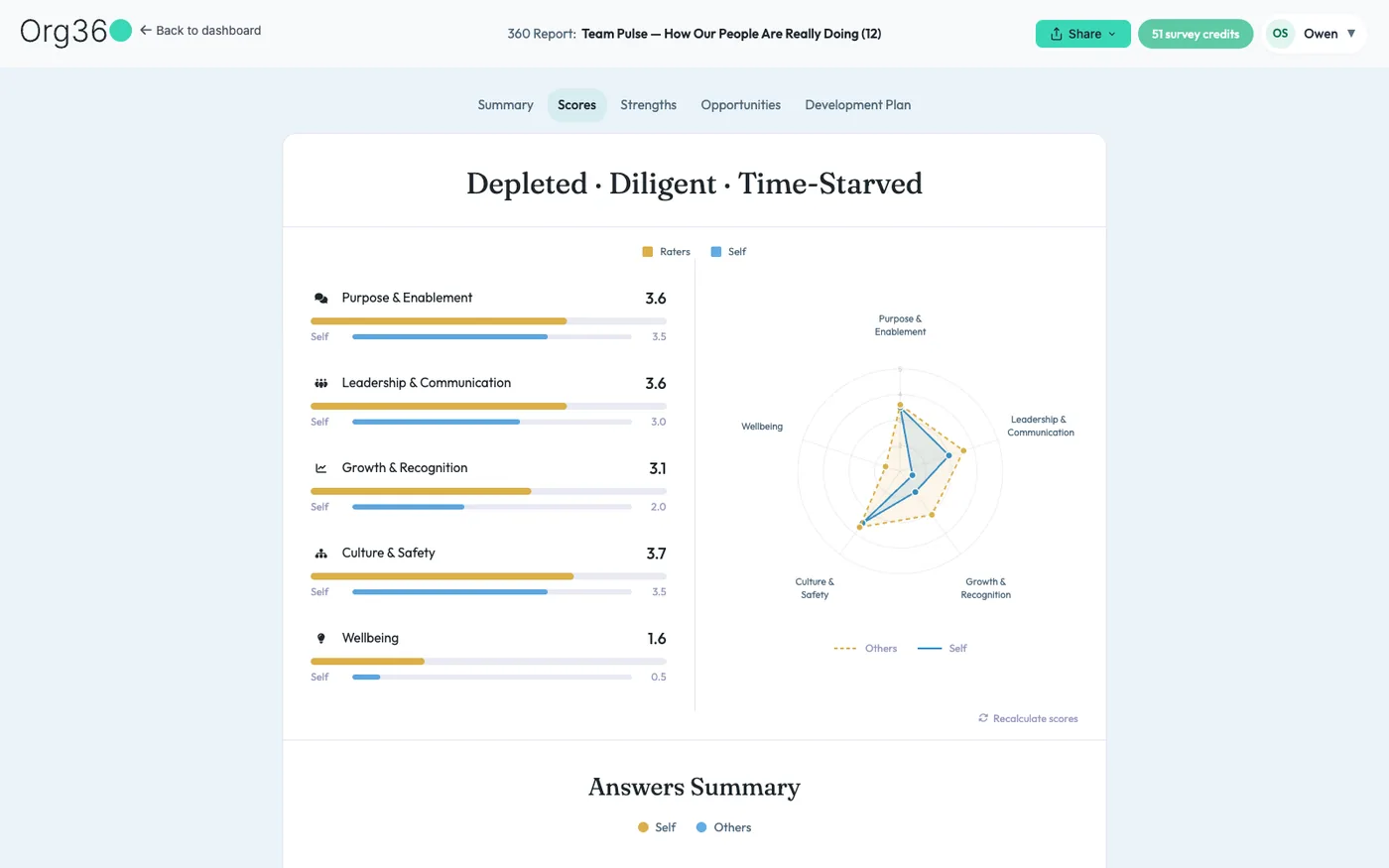
Each area as a bar chart of the person's self-rating against everyone else's, plus a radar chart of all areas at once. It's the quickest way to see where self-view and others' views differ.
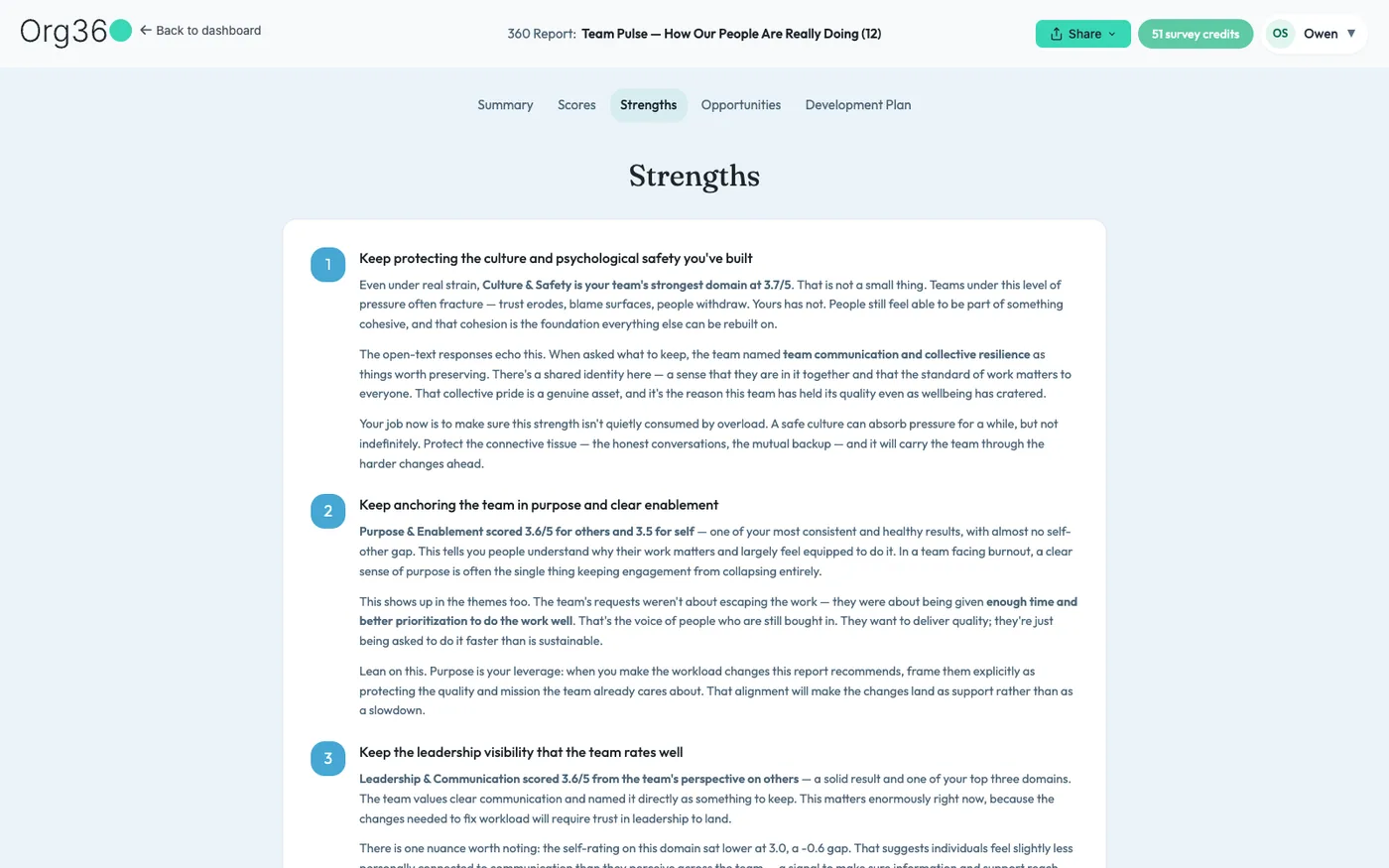
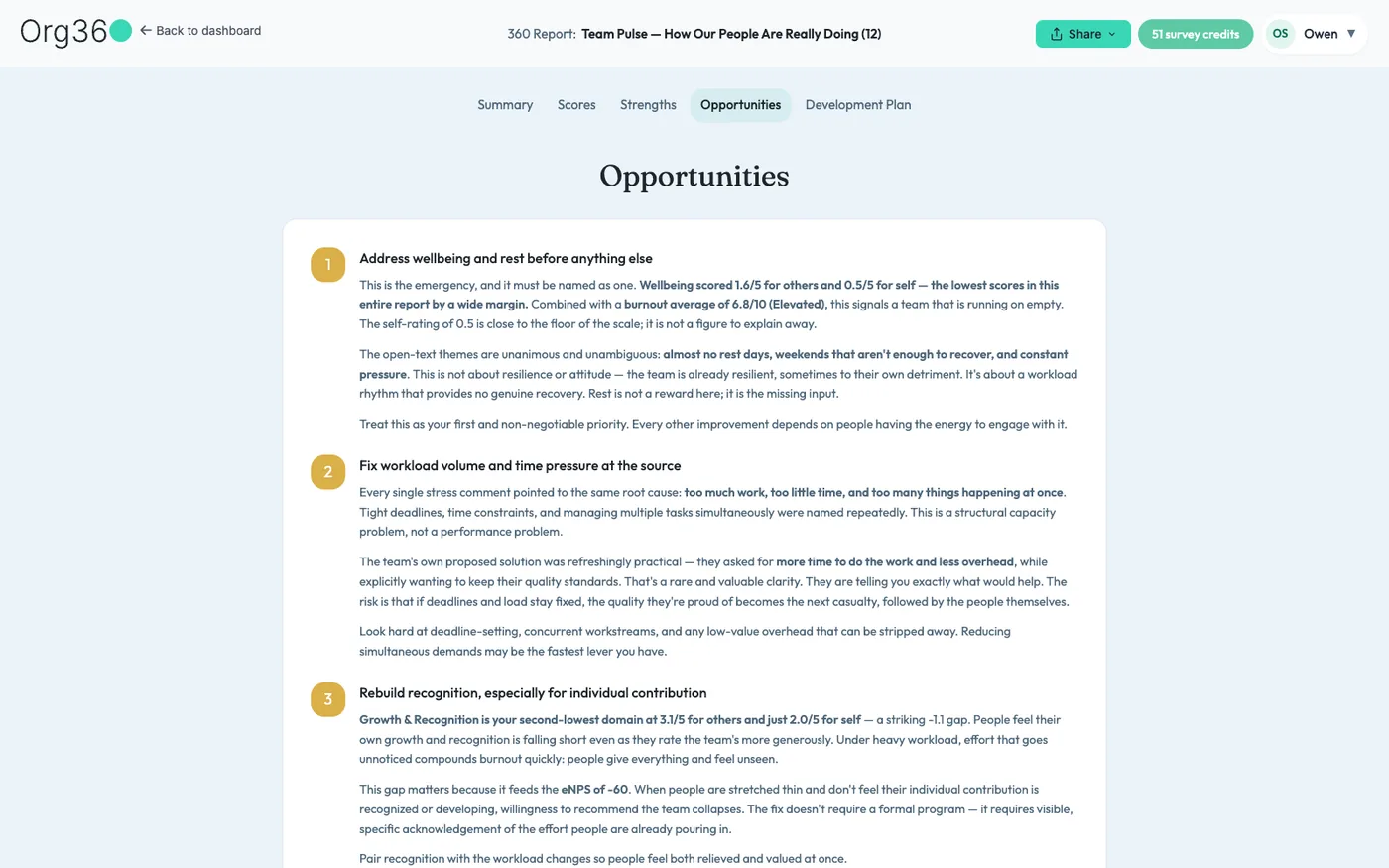
Strengths and areas to develop
Development plan
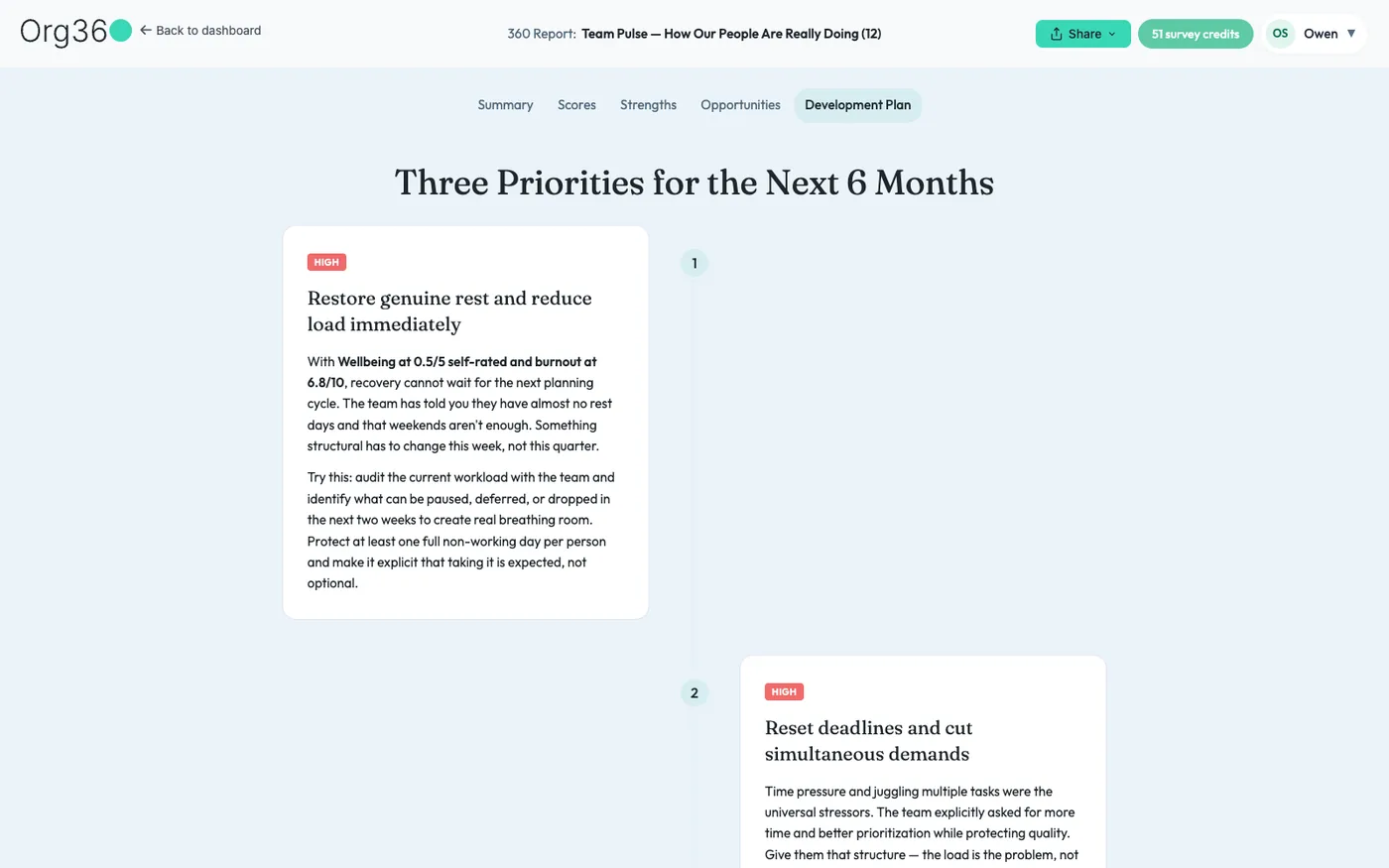
3 priorities for the next 6 months, each marked by urgency, with something concrete to try first.
Sharing a report
Share, at the top of the report, gives you a link to copy and a PDF download. In No confidentiality mode, names are left out of the shared version.
Want the report in your own format? Build it in your AI (next section), or export the results as a CSV.
Using Org360 from Claude, ChatGPT or Gemini
Org360 has a connector that lets your AI work in your account for you. You ask in a normal chat, and Org360 still handles the questions, invitations, confidentiality and scoring. The full walk-through, with demos and sample reports, is on Use with AI.
Connecting
- Claude: open the Org360 connector page in Claude (or search for Org360 Surveys in the connector directory), click Connect to Claude, sign in to Org360 and click Allow. Then turn it on in a chat from the connectors menu.
- ChatGPT: open Plugins in the sidebar, click Add, then Add custom MCP server. Name it Org360, add the description "360 feedback and engagement surveys", paste
https://api.org360.app/mcp, keep OAuth, tick the box and click Create as a plugin. Then click Connect Org360, sign in and click Allow. - Gemini: add Org360 as an MCP server with the address
https://api.org360.app/mcp, then sign in and allow access.
You can switch the connector off at any time. Watch the short videos of the Claude and ChatGPT steps (about 30 seconds each).
What you can ask
- "Set up a Leadership Pulse for my client Sam, and add a question about delegation."
- "Here's my 360. Set it up in Org360." Your own questions, pasted or uploaded.
- "Draft a short survey on how my client's board sees her fundraising." A freestyle survey, written from your description.
- "How many of Elena's raters have answered? Remind the rest."
- "Put Elena's scores in a Google Sheet."
- "Make Elena's report in my style." A report in your structure, branding and coaching model, which you can save as a skill and reuse.
Freestyle surveys and custom reports only work through your AI. The question bank, inviting colleagues and managing your plan only work on the website. Your AI asks you to confirm before anything is sent.
What the AI can see
Only surveys you created, and only when it calls Org360, usually because you asked. Once a report is unlocked, that includes individual answers and comments, in every confidentiality mode. The modes control what the Org360 app shows; the results you pull into your AI are yours to handle with care. Access lapses after 30 days without use. Details are in our GDPR page.
Teams and workspaces
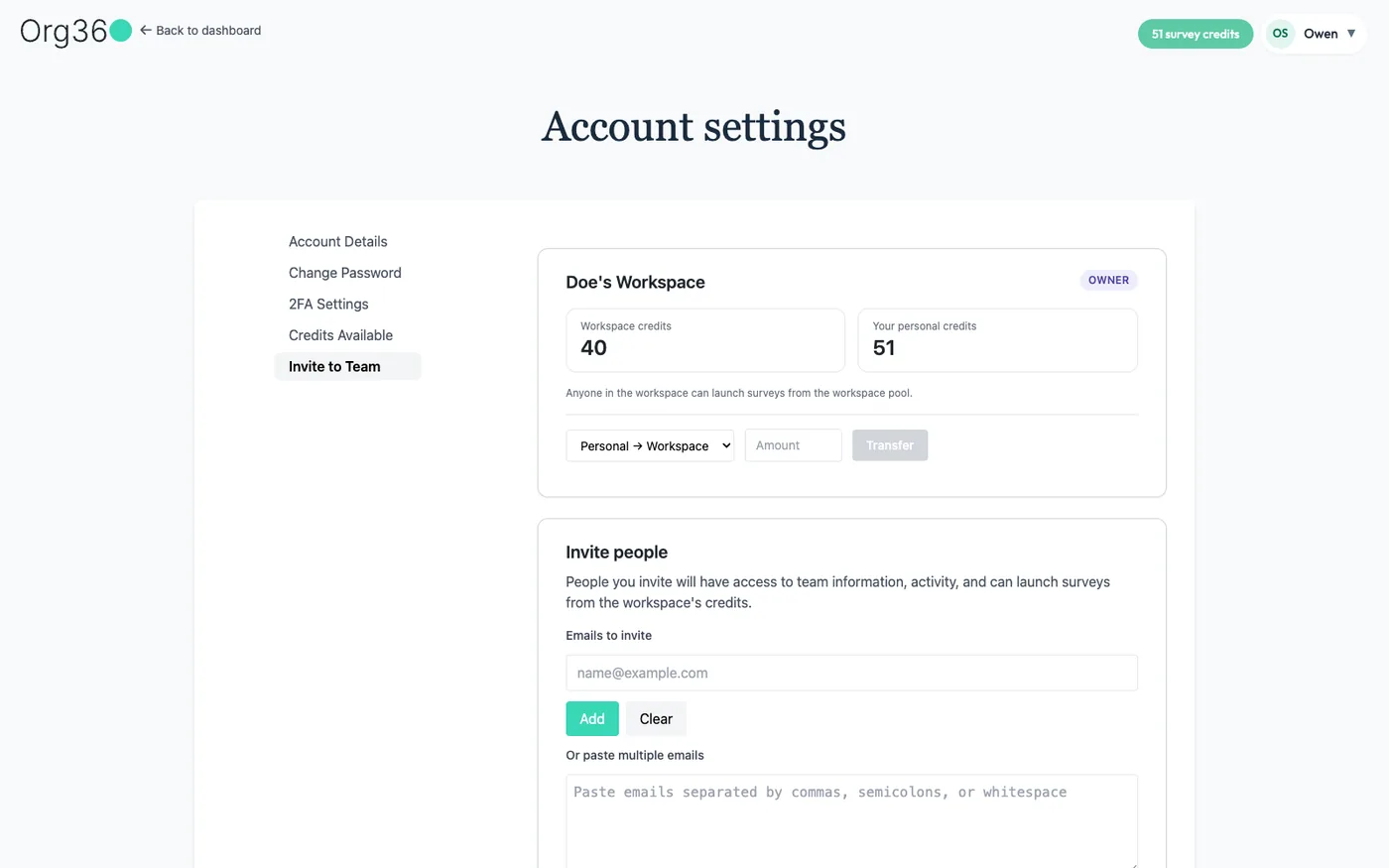
On Essentials and Pro you can create a workspace: a shared pool of survey credits that everyone you invite can use. Go to Invite to Team in account settings, name the workspace and, if you like, move some of your credits into it.
Roles
- Owner: invites and removes anyone, changes roles, moves credits and can delete the workspace. The owner can't leave; deleting the workspace is the way out.
- Admin: invites and removes members, but not other admins.
- Member: uses the shared credits and can leave at any time.
Moving credits
The owner can move credits from personal to workspace or back: pick a direction, enter an amount and click Transfer.
Switching to Team Mode
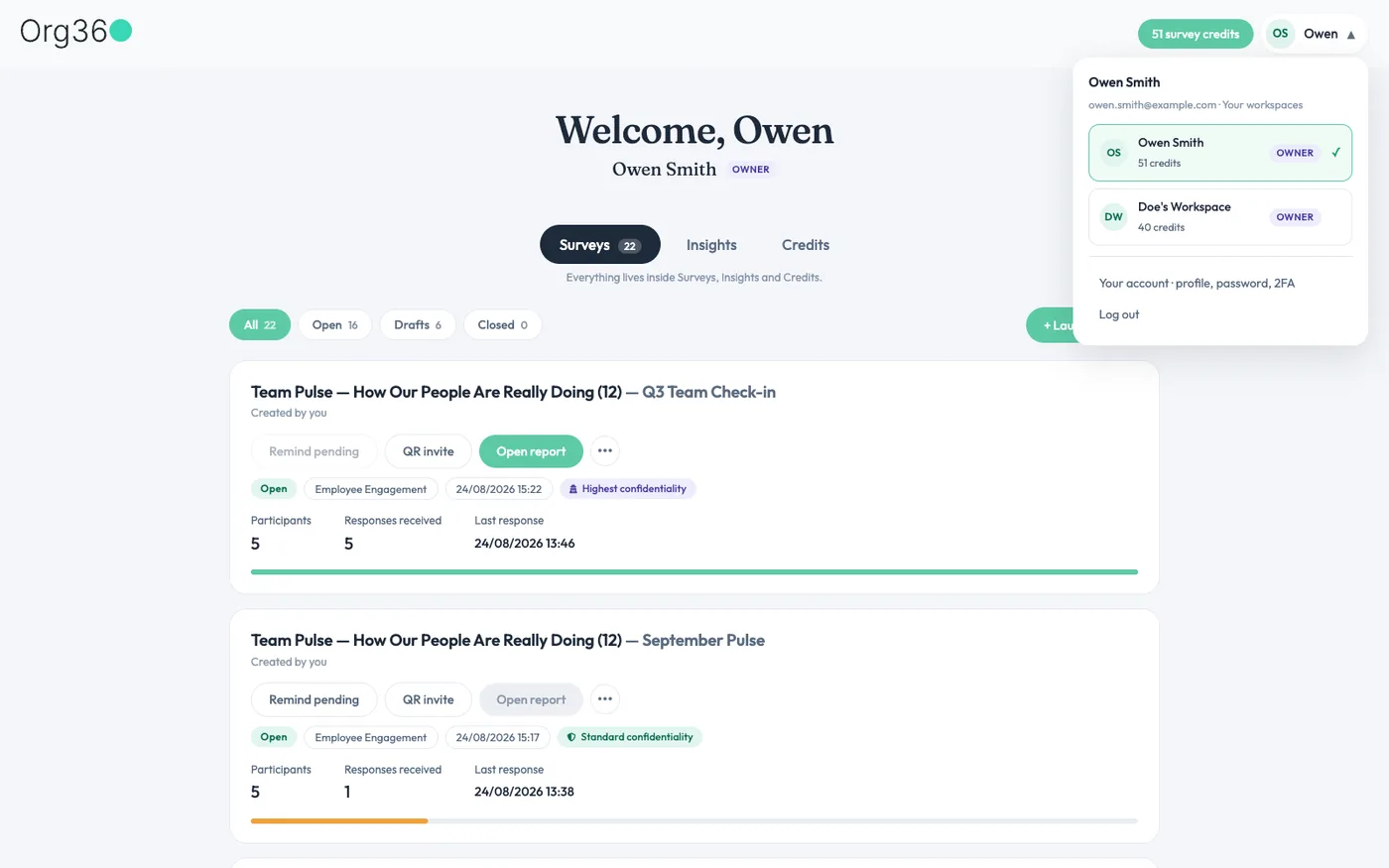
The profile menu at the top right lists your personal account and every workspace you belong to, with credits and your role. Pick a workspace and confirm to switch the dashboard to it.
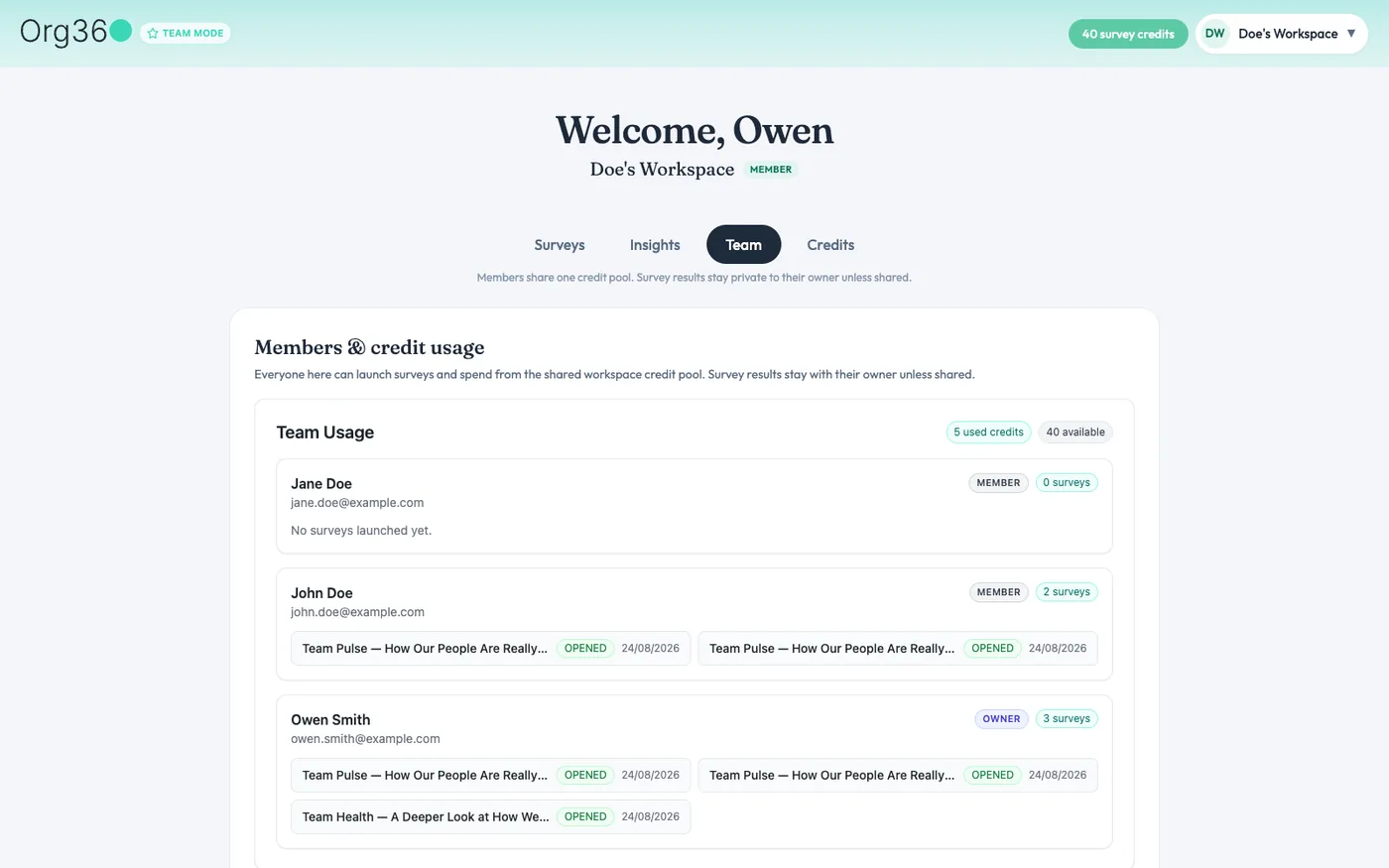
In Team Mode a banner shows at the top, the workspace's credits replace yours, and a Team tab shows who's in the workspace, their role and what each person has sent. Survey results stay private to whoever created the survey, unless they share the report.
Inviting people
Add colleagues one at a time, or paste a list separated by commas, semicolons or spaces.
Deleting a workspace, at the bottom of the same page, removes everyone's access straight away. It can't be undone.
Account settings
Open the profile menu at the top right, then Account settings.
- Account details: your name, organization, login email and business email.
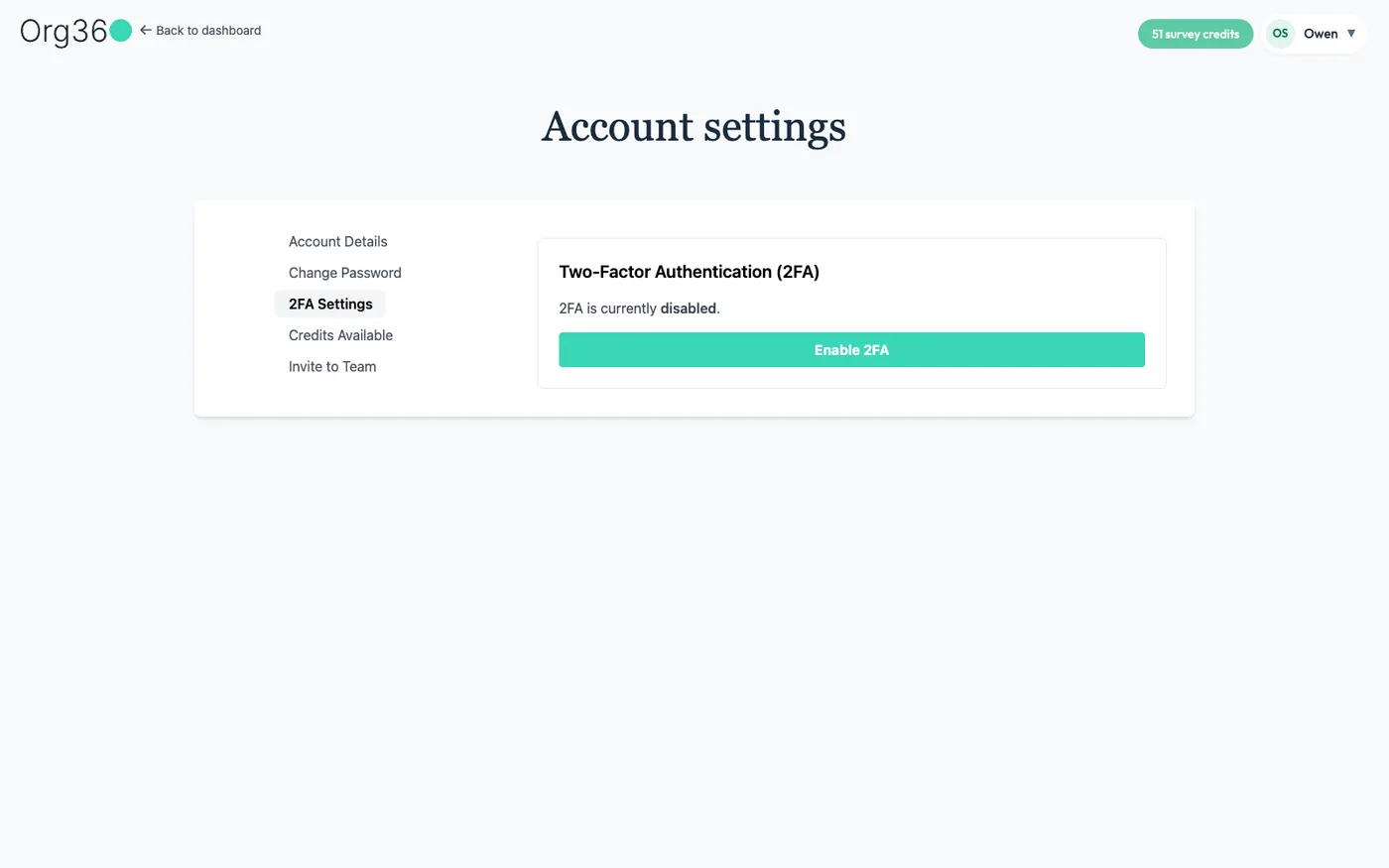
- Password and 2FA: two-factor authentication is off by default and takes one click to turn on.
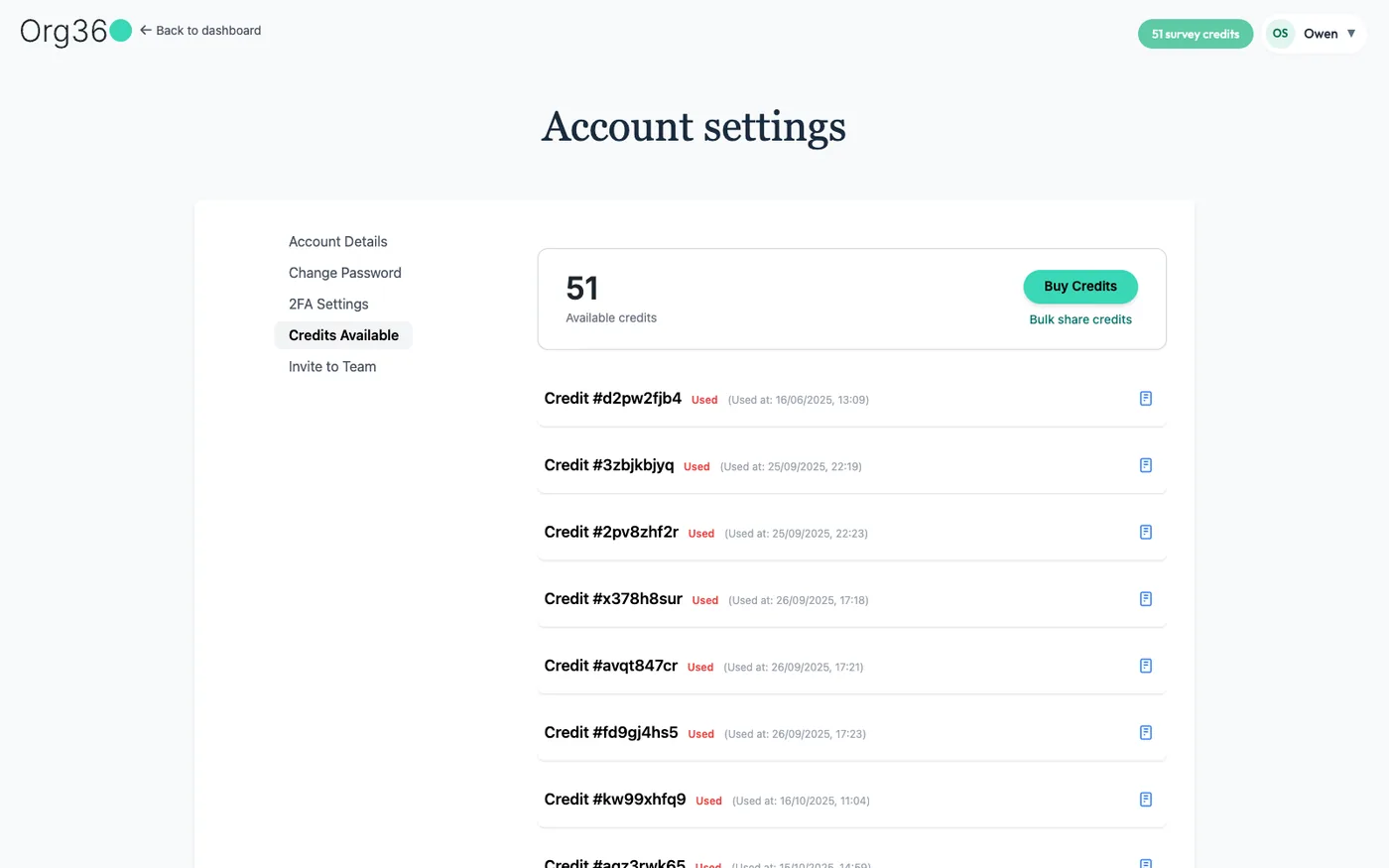
- Credits: every credit you've held, whether it's used and when, with options to buy more or share some with a colleague.
Plans and billing
Current prices are on the pricing page. In short:
- Free: 1 survey with the core templates, the No confidentiality and Standard modes and the AI report.
- Essentials: $250 a year, or $25 a month, for 24 surveys, plus a shared workspace.
- Pro: $490 a year, or $49 a month, for 96 surveys, with the full question bank, Highest confidentiality, AI reports with themes and trends, a shared workspace and priority support. On both plans, unused surveys roll over and stay valid for 18 months.
- Without a plan: 1 survey for $49, or 4 for $69.
- Nonprofits: 40% off annual plans, $150 a year for Essentials or $294 for Pro, when you check out with your .org email.
You pay per survey, never per respondent or per seat. Cancel at any time.
Privacy and data
- Survey and account data is stored on servers in Germany. Org360 is run by Nonprofit Builder Sàrl in Switzerland.
- AI reports are written with Claude. Names of people and organizations are removed before any text is sent, and survey data isn't used to train AI models.
- Deleting a survey or your account removes its personal data.
The full details are on our GDPR page. Questions? Contact us.
Glossary
- Survey credit
- Sends 1 survey, to up to 500 people. Comes from your own account or a shared workspace.
- Draft, open, closed
- A survey's life: built but not sent, collecting responses, finished.
- Confidentiality mode
- No confidentiality, Standard or Highest. Chosen when you send a survey, shown on the survey card and the report, and fixed after sending.
- eNPS
- The 0 to 10 question "how likely are you to recommend this organization as a place to work?" More
- Feedback archetype
- 3 short phrases at the top of a report that sum up the feedback.
- Connector
- The link between Org360 and your AI (Claude, ChatGPT or Gemini), which lets the AI work in your account when you ask.
- Workspace and Team Mode
- A shared pool of credits for a team, and the dashboard view of that workspace.
- Owner, admin, member
- Workspace roles. Owner: full control, can't leave. Admin: invites and removes members. Member: no management rights, can leave at any time.
Try it on the sample 360
Your free account includes a finished 360 for a fictional leader, and 1 survey to send for real.